No path to hardware
The MCP server and the twin host start and drive simulated machines only. They have no serial or network connection to a real MC-1; in shadow mode the AI can only read.
Language models write G-code that looks right. Studio tells you whether it is. Its built-in MCP server lets an AI assistant set up a blank, run the program on a twin and read back what happened — alarms, collisions, forces, chatter, the shape of the part — and then make it faster.
Your AI client starts TwinwrightStudio.exe --mcp, which connects to a twin host on your computer. The host keeps its twins between conversations: a practice twin (sandbox) by default, and the machine in your window only when you switch its AI access on. Every simulation runs on a hidden copy of the setup that starts from a fresh blank, faster than real time.
Use the AI client you already have, or talk to a model inside Studio. Both use the same tools on the same twins.
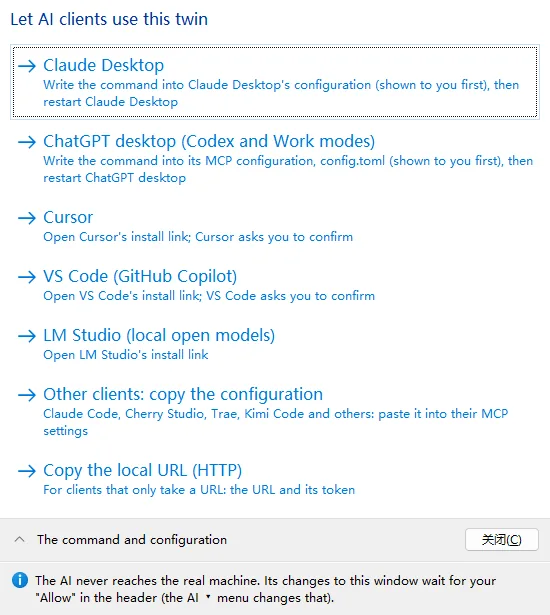
Studio writes the entry into your client's configuration, after showing you the change, or opens the client's own install link. Any other MCP client gets the command or the local address to paste.
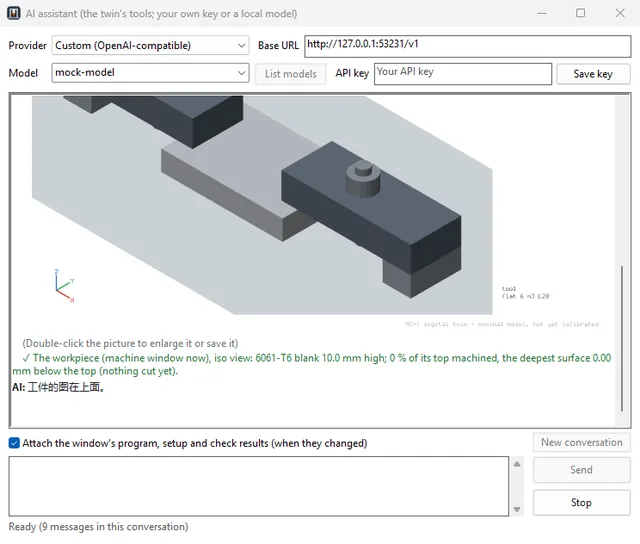
The AI panel talks to Anthropic, OpenAI, DeepSeek, Qwen (Bailian), Kimi, Zhipu GLM or any OpenAI-compatible service, or to a model on your own computer in LM Studio or Ollama. It can attach the window's program, setup and check results, and it shows the twin's pictures in the conversation.
Twenty-three tools. Each returns a short summary the model can reason with and structured data with a schema, and every result names the machine it came from.
| Machine | |
|---|---|
machine_status | state, alarm and its meaning, homing, positions, tool, blank; the other machines |
machine_control | home, unlock, reset, hold, resume, stop, move, power, E-stop |
machine_mdi | MDI lines one at a time, an answer per line, stopping at the first refusal |
| Setup | |
setup_workpiece | place or remove a blank in a vise, under clamps, on tape — or your own STL |
setup_tool | the tool in the spindle and the tool table for M6 |
setup_work_zero | G54 on a corner or the centre of the blank |
setup_part | the design part (STL) to compare with |
setup_copy · setup_example | copy a setup to another twin; set up one of the 15 examples |
| Program | |
program_check | grblHAL check mode, the path preview against the setup and the twelve static rules |
program_simulate | run to the end on a hidden copy, from a fresh blank: time, alarms, collisions, rapids into material, loads, chatter, part deviation |
program_run · program_load | run or load on the machine itself (your window's machine asks you first) |
program_debug · program_restart | run to a line, inspect, step; the start block for a restart |
program_optimize · program_generate | the optimizer and the feature generator |
program_versions | list, get, save and compare versions |
| Runs and results | |
run_status · run_profile | wait for or stop a long run; the per-line profile |
result_compare | deviation from the design part, in numbers |
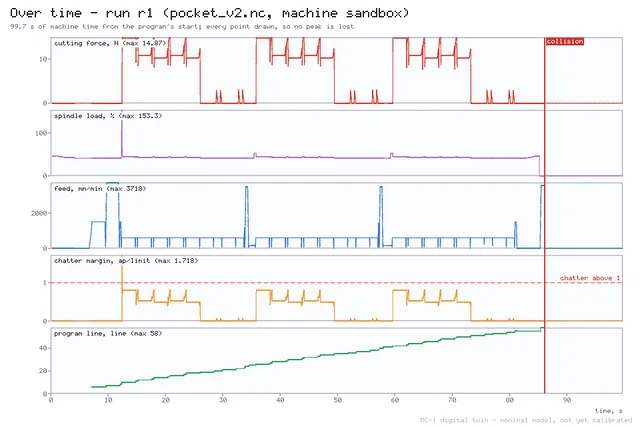
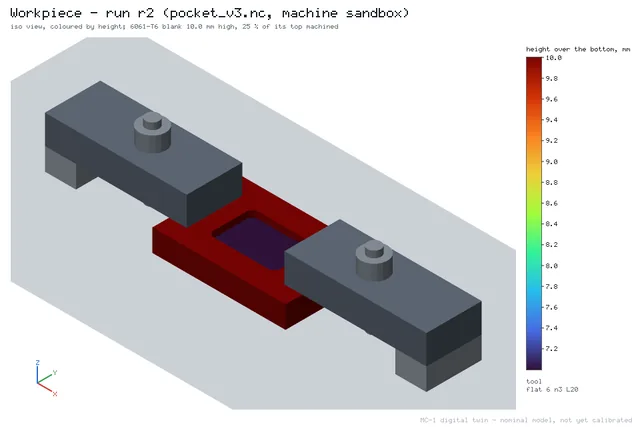
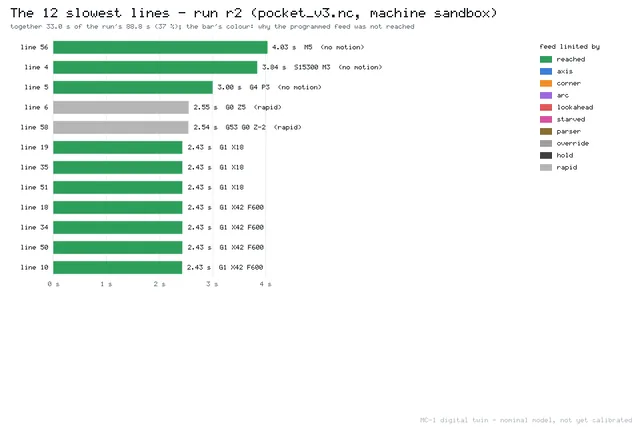
result_image | pictures: workpiece, toolpath, deviation map, slowest lines, curves over time, A/B comparison |
log_query | search the audit log: who did what, when, to which machine |
Real calls to Studio 0.2.0 over MCP on 30 September 2026. A script plays the AI client; the tool results are the twin's, shortened.
result_image draws the twin's results as pictures, with the key numbers in words beside them. These three came from the session above.
In Studio: switch AI on, then AI ▾ → Connect an AI client, and pick yours. To configure a client by hand, point it at TwinwrightStudio.exe (installed in %LOCALAPPDATA%\Programs\Twinwright Studio) with the argument --mcp:
{
  "mcpServers": {
    "twinwright": {
      "command": "C:\\Users\\<you>\\AppData\\Local\\Programs\\Twinwright Studio\\TwinwrightStudio.exe",
      "args": ["--mcp"]
    }
  }
}[mcp_servers.twinwright]
command = 'C:\Users\<you>\AppData\Local\Programs\Twinwright Studio\TwinwrightStudio.exe'
args = ["--mcp"]{
"servers": {
"twinwright": {
"type": "stdio",
"command": "C:\\Users\\<you>\\AppData\\Local\\Programs\\Twinwright Studio\\TwinwrightStudio.exe",
"args": ["--mcp"]
}
}
}# Claude Code
claude mcp add twinwright -- "C:\Users\<you>\AppData\Local\Programs\Twinwright Studio\TwinwrightStudio.exe" --mcp
# any client over HTTP, on this computer only
"C:\Users\<you>\AppData\Local\Programs\Twinwright Studio\TwinwrightStudio.exe" --mcp-http 8766 --mcp-token <your token>
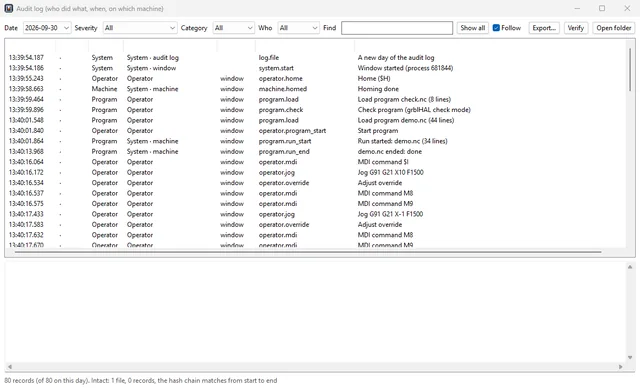
# endpoint http://127.0.0.1:8766/mcp, header Authorization: Bearer <your token>Studio keeps an audit log on your computer: the operator's actions in the window, every AI tool call with the client's name, alarms, collisions, programs started and ended. Each record carries a SHA-256 hash of the one before it, across days, so a changed or missing record shows.
The MCP server and the twin host start and drive simulated machines only. They have no serial or network connection to a real MC-1; in shadow mode the AI can only read.
The window's AI switch is off by default. While it is off, AI clients work on a practice twin (sandbox) you do not see, and its results say so, so the AI does not mistake it for your machine.
When an AI wants to change the machine in your window, the header asks Allow or Decline; no answer within 60 s counts as declined. You decide whether it asks.
program_simulate runs on a hidden copy of the setup, starting from a fresh blank, so trying a program never changes the machine it was asked about.
A program the AI verified is a file. A person loads it on the real machine, sets the zero and presses cycle start.
Every run ends with a replay hash: the same program on the same setup gives the same hash on any computer, so a claim the AI makes can be checked.
A hosted MCP endpoint for clients that can only reach the internet — claude.ai, ChatGPT on the web, Gemini, Microsoft Copilot — with sign-in and twins per user.
Pictures you can turn and click inside the chat, in clients that support MCP Apps.
Machining tasks scored automatically by the twin, to compare how well models write and fix G-code.
Any MCP client that can start a local program: Claude Desktop, Claude Code, ChatGPT desktop (Codex and Work modes), Cursor, VS Code, LM Studio, Cherry Studio, Trae and others. Web versions such as claude.ai or ChatGPT on the web only reach servers on the internet; the planned Twinwright Cloud will provide one. Every build is tested with automated MCP clients over stdio and HTTP and with local models in LM Studio; the one-click entries follow each client's documented configuration.
Only what you give it or what the tools return. The server runs on your computer and Twinwright receives nothing. With a cloud model, your prompts and the tool results go to that provider under its terms.
The MCP server and the assistant are part of Studio and free. A cloud model is billed by its provider to your key; a local model costs nothing.
A call answers within 40 s; a longer run answers with a run id and run_status collects the result, because some clients give a tool call only 60 s. Simulations with material removal usually run several times faster than real time (example 02: about 5.8× on a current desktop PC); fine engraving can be slower than real time.
No. It is a way for any AI — or any program — to test G-code against a faithful machine and to improve it with evidence. Use it with your CAM, your own code or an assistant.